
Getting Started
Pecten runs Game Boy Advance games in your browser. Everything stays on your device: ROMs, saves, and settings are stored by the browser and never uploaded.
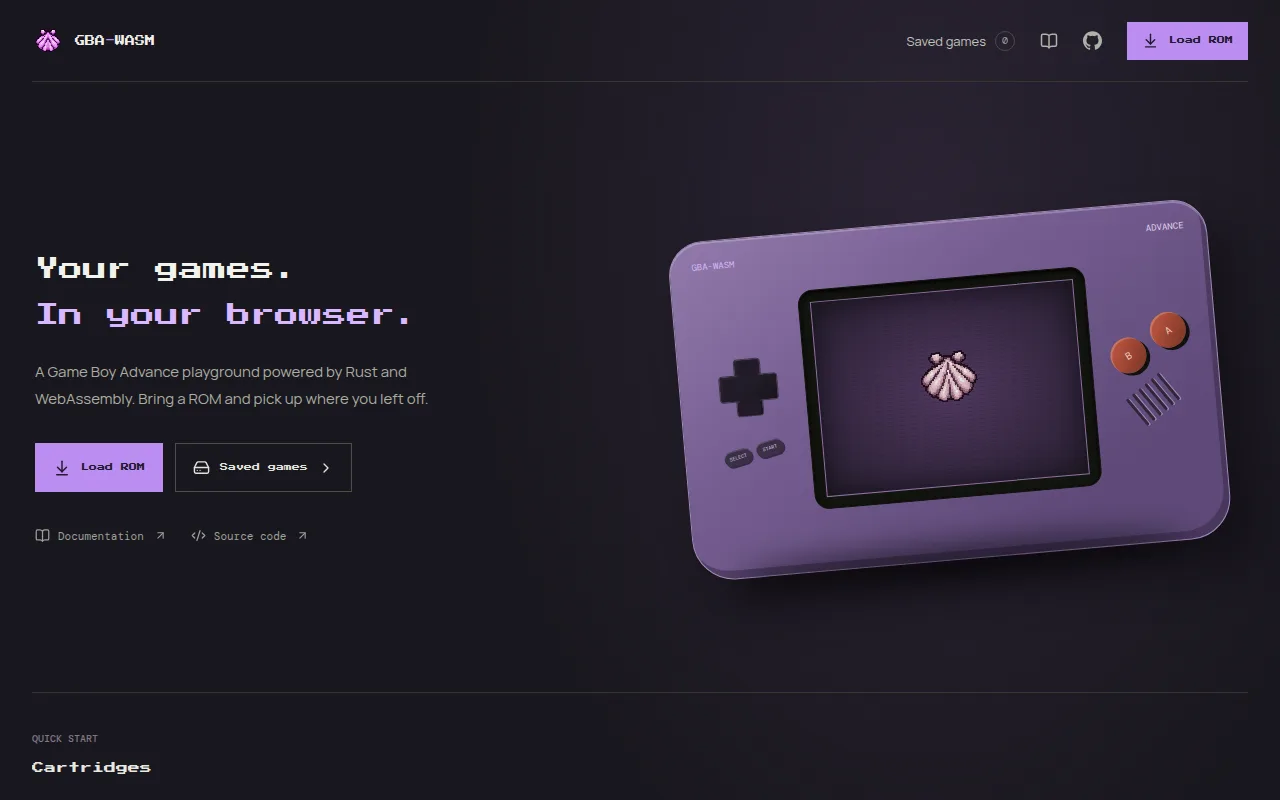
Load a game
- Click Load ROM in the header or on the home page.
- Pick a
.gba(or.bin) file. Pecten does not include any games; you bring your own ROM. - The game opens on the play screen and is added to your library.
If a file cannot be loaded, the play screen shows a diagnostic log with the file name, size, the stage that failed, and the error. Copy it into a bug report if you think the ROM should work.
TIP
If a game stays black, the play screen shows No video output yet after about two seconds. The emulator is still incomplete, so some games do not boot.
The home page
The Cartridges cover flow lists every game you have played, most recent first, followed by a few well-known titles. Covers of games you have never loaded here are grey and their button reads Insert cartridge: it opens the file picker, because ROMs are never bundled. Covers of games in your library launch them directly.
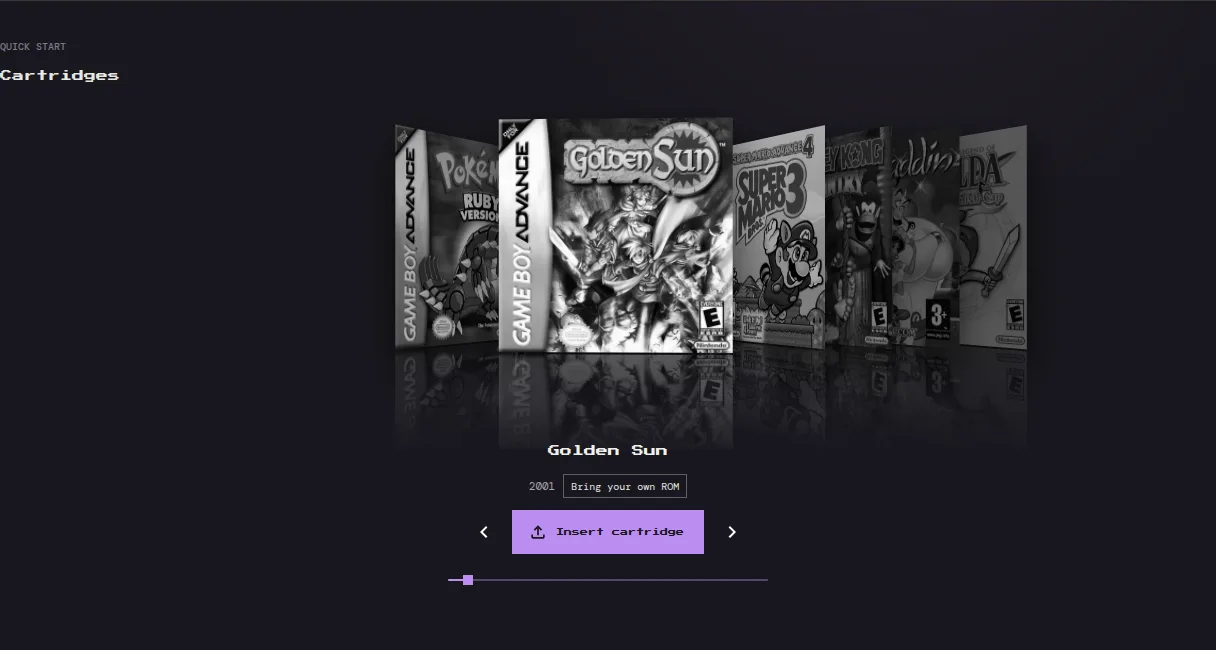
Scroll the covers by dragging, swiping, using the horizontal scroll wheel or trackpad, the arrow buttons, or the slider. With the cover flow focused, ←/→ move between covers and Enter launches the centred one. The covers advance on their own until you hover over or touch them.
Recently played shows your last three games.
Your library
Saved games in the header opens the library: every ROM you have loaded, with a screenshot and the last time you played it. Click a game's picture to play it.
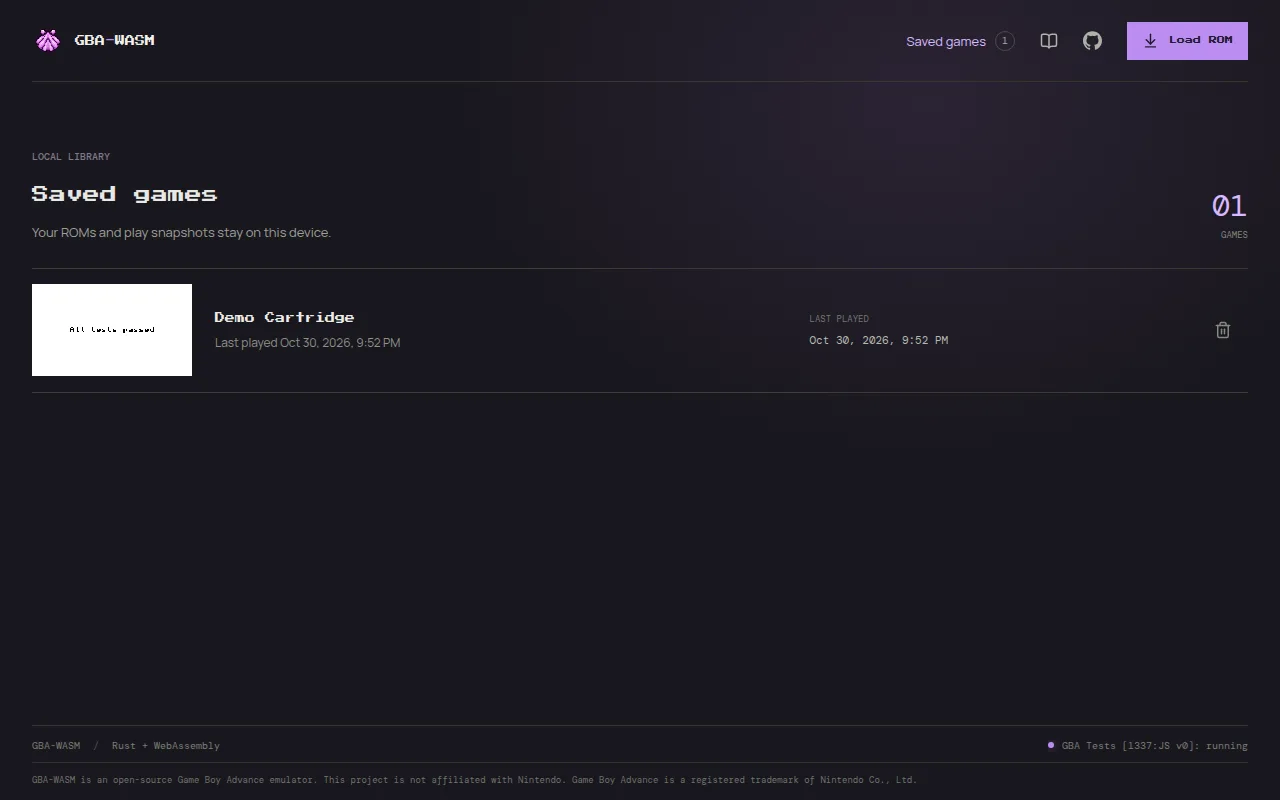
- Star a game to make it a favorite. Favorites stay at the top of the list, and the Favorites tab shows only them.
- Search by name, and sort by recently played, name, or most played.
- The bin icon removes a game after you confirm.
- Each row shows the time played. The same figure appears in the game's Details (the side card on the play screen). It counts only while the game runs: not while paused, in a background tab, or after an error.
The picture of a game is updated each time the game saves or you save a state, so it shows where you left off.
WARNING
Removing a game from the library deletes the ROM copy, not its saves or its play time. If you load the same ROM again, its save and save states come back, because they are tied to the ROM contents (see Saved Games).
Install as an app
On browsers that support it, Pecten offers to install itself as an app (a PWA). Installed, it opens fullscreen from your home screen and works offline.
- Android and desktop Chrome or Edge: click Install in the prompt, or use the browser's install menu.
- iPhone and iPad: in Safari, tap Share, then Add to Home Screen.
If you dismiss the prompt, it is not offered again for 14 days. It never appears on the play screen.
Where your data lives
| Data | Stored in | Shared between |
|---|---|---|
| ROM library | IndexedDB gba-wasm-library | nothing; one browser on one device |
| Game saves and save states | IndexedDB gba-wasm-saves | every library entry of the same ROM |
| Settings | localStorage | every game |
| Play time | localStorage | every library entry of the same game name |
Clearing the site data in your browser deletes all of it. Use Download .sav to keep a copy of important saves (Saved Games).
Next steps
- Saved Games: automatic saves, save states, and moving saves between emulators
- Settings: game speed, shaders, sound, touch controls, haptics, and themes
- Desktop and Mobile Play: keyboard play and the portrait and landscape touch layouts
- Controls and Shortcuts: every key binding