
Settings
Open Settings from the button above the game. Changes apply immediately and are remembered by the browser for every game.
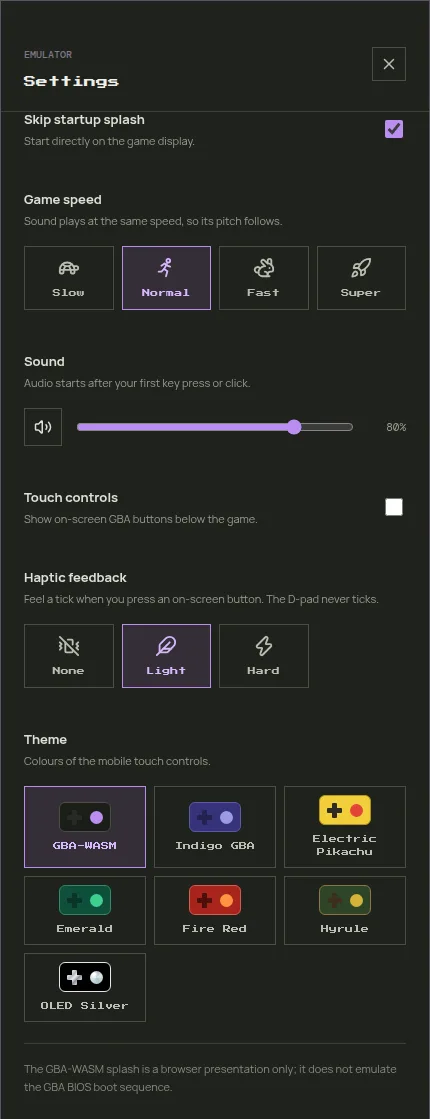
Skip boot animation
When off, every game starts with a two-second Pecten boot animation: the logo spins in and the name is typed out. Press any GBA button (keyboard or touch) to skip it. The emulated console draws it, but it is Pecten's own animation, not the original Game Boy Advance boot sequence. Games resumed from where you left off skip it. See HLE BIOS for how it works.
Game speed
| Option | Speed | Use it for |
|---|---|---|
| Slow | ×0.5 | tricky sections |
| Normal | ×1 | normal play, 59.73 frames per second like the console |
| Fast | ×2 | skipping dialogue and grinding |
| Super | ×4 | long walks and grinding |
Sound plays at the same speed as the game, so its pitch rises at Fast and Super and drops at Slow. On slower devices, Super may not reach four times normal speed.
Shaders
Effects that make the picture look like the Game Boy Advance's own LCD screen, as players and modders often add to older games. Off is the default.
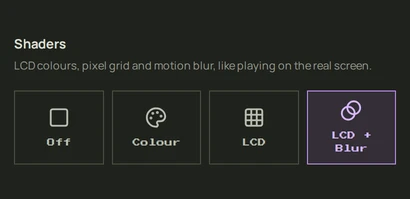
Each option adds one effect to the one before it:
| Option | Effect |
|---|---|
| Off | the raw pixels, as the console renders them |
| Colour | softer, less saturated colours, as on the GBA's unlit screen that games were coloured for |
| LCD | Colour, plus the thin dark grid between the screen's pixels |
| LCD + Blur | LCD, plus each frame blended with the previous one, like the screen's slow response |
The blur also smooths the flicker some games use for transparency, such as Golden Sun's Psynergy effects, which otherwise shimmer on a modern screen. Fast-moving scenes look slightly smeared with it, as on the original console.
The change shows at once, even while the game is paused, so you can compare the options on the same frame.
Good to know
- The grid needs a large picture. It is drawn at your screen's full resolution and fades out when each GBA pixel covers fewer than about four screen pixels, for example in a small browser window on a standard-resolution monitor. Phones and high-resolution laptop screens show it. When it has faded out, LCD looks the same as Colour.
- Browser support: the shaders use WebGL2, available in current versions of Chrome, Edge, Firefox, and Safari (15 and later). Without it the game shows the raw pixels.
- Screenshots in the library and in save slots are always the raw pixels, whatever you choose here.
Sound
The speaker button mutes and unmutes the game; the slider sets the volume. Browsers only allow sound after you interact with the page, so audio starts on your first key press, click, or tap.
Touch controls
Shows the on-screen GBA buttons. It is on by default on phones and tablets and off on computers. The Touch button above the game toggles the same setting. See Desktop and Mobile Play for the layouts.
The on-screen buttons and the keyboard work together, so you can use both at once.
Haptic feedback
A short vibration when you press an on-screen button:
| Option | Effect |
|---|---|
| None | no vibration |
| Light | short tick (30 ms) |
| Hard | longer tick (60 ms) |
The D-pad never vibrates, because its direction changes too often while you steer.
Device support
- Android (Chrome and other Chromium browsers): uses the phone's vibration motor. Nothing happens while the ringer is on Silent, or when Settings → Vibration & haptics → Touch feedback is off.
- iPhone (iOS 18 and later): plays the system haptic. Light and Hard feel the same, and a tick plays when a finger lands on a button, not when it slides onto one.
- Computers and browsers without vibration support: the setting has no effect.
Theme
Colours of the touch controls and of the play screen while touch controls are shown. Seven themes are available: Pecten, Indigo GBA, Electric Pikachu, Emerald, Fire Red, Hyrule, and OLED Silver.
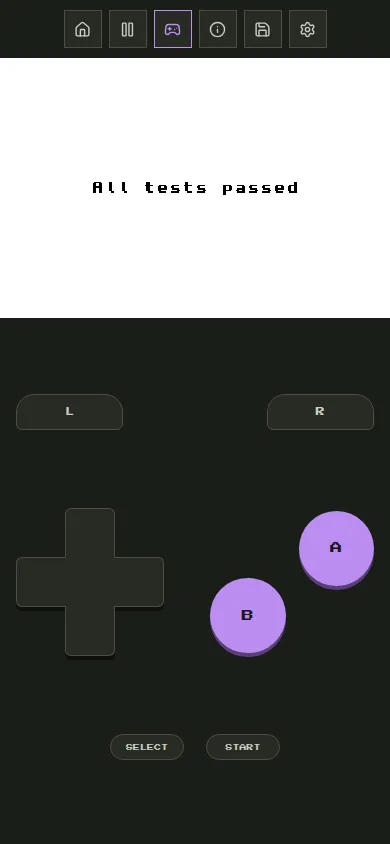
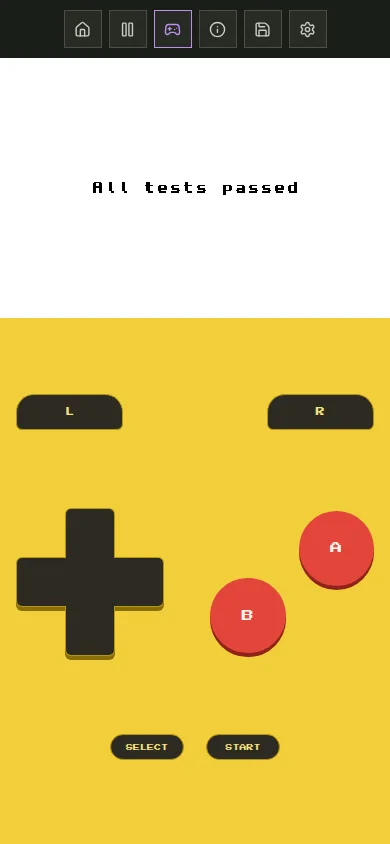
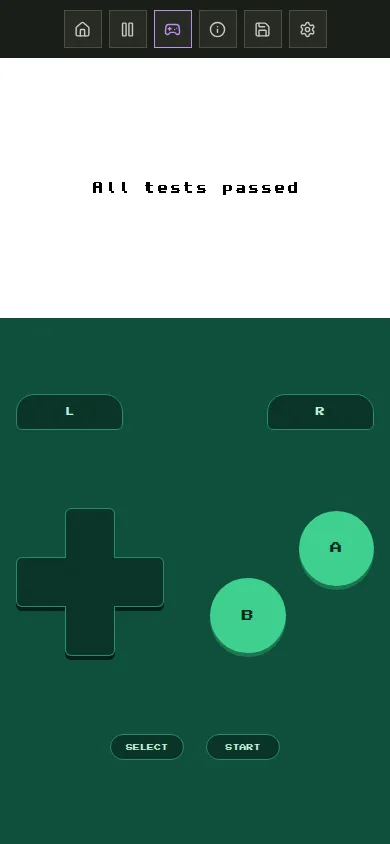
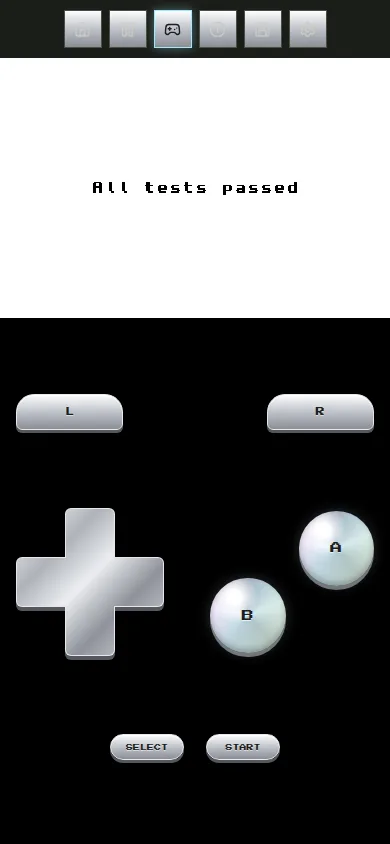
OLED Silver uses a pure black background, which saves battery on OLED screens.