
Saved Games
Pecten keeps two kinds of progress, and they are independent:
| Game save | Save state | |
|---|---|---|
| What it is | The cartridge's own save memory (SRAM, Flash, or EEPROM), written when the game saves | A snapshot of the whole console at any moment |
| Created | Automatically, whenever the game saves | By you, from the Saves dialog or with F2 |
| Slots | One per game | Three per game |
| Works in other emulators | Yes, as a .sav file | No, the format is specific to Pecten |
Both are tied to the ROM contents (its SHA-256 hash), not to the file name. Every library entry of the same ROM shares one save, and a different dump or revision of a game has its own.
Open the Saves dialog from the button above the game.
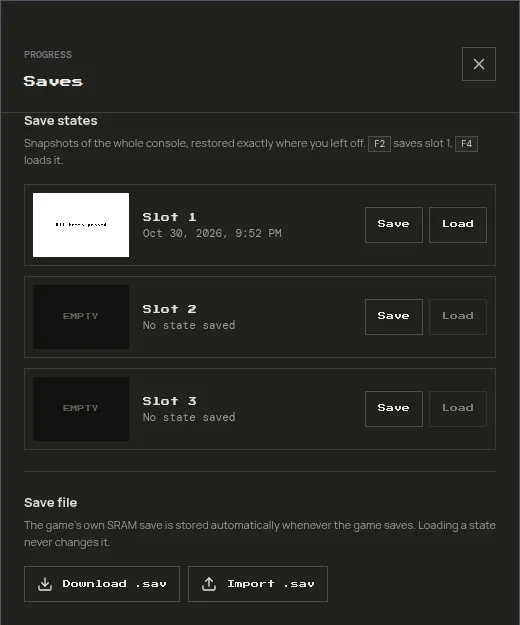
Game saves
When a game writes its save, Pecten waits until the game has stopped writing for half a second, then stores it and shows Game saved. It also stores pending saves when you leave the page, switch apps, or load another ROM. The next time you start the game, its save is loaded before it boots.
The save type is detected from the ROM, and the Saves dialog names it. A game without save memory shows This cartridge has no save memory.
If a stored save is unreadable or belongs to a different save type, it is not loaded, and the status bar says so. The game then starts without a save.
Save states
A save state restores the game exactly where you were, including the music, even in places where the game does not let you save.
- Save stores a state in a slot, with a screenshot and the date. Saving into a used slot replaces it.
- Load restores a slot. It also works while the game is paused.
- F2 saves to slot 1 and F4 loads slot 1, without opening the dialog.
Loading a state never changes the game save. If you load an old state and then save in-game, the in-game save is overwritten as usual.
WARNING
Save states can be rejected after an update of Pecten that changes the snapshot format. Keep important progress in a game save too. A rejected state shows an error and leaves the running game untouched.
Resume where you left off
Whenever play stops (you leave the game, switch apps, lock the screen, or close the tab), Pecten snapshots the console automatically. The next time you start the same ROM, from the home page, the library, or by loading the file again, it continues from that snapshot instead of booting, and the status bar says resumed where you left off.
- The snapshot is kept apart from the three save-state slots and never replaces them.
- Pressing Home, the browser's back button, or the phone's back gesture while playing pauses the game and asks Leave game? first:
- Keep playing closes the question and continues.
- Leave goes home and keeps the snapshot.
- Leave and restart from the last in-game save drops the snapshot, so the next start boots from the game save.
- iPhone's edge swipe and closing an installed app cannot be intercepted. The snapshot is still stored, so nothing since the last in-game save is lost.
- Importing a
.savdrops the snapshot, so the imported save is the one the game uses. - A snapshot older than the game save is ignored, so it never undoes progress the game already saved.
Export a save
Download .sav downloads the game save as a raw .sav file named after the game. Use it to:
- back up your progress before clearing browser data;
- move a save to another browser or device (import it there);
- continue in another emulator.
The file is the raw save memory, the format most emulators and flash-cart tools use (mGBA, VBA-M, NanoBoyAdvance, and others).
Import a save from another emulator
- Load the game in Pecten.
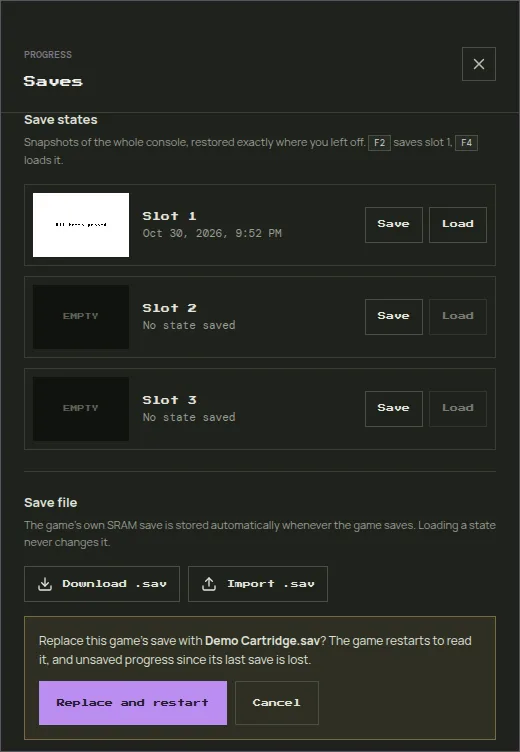
- Open Saves and click Import .sav.
- Pick the
.savfile. Pecten checks its size, then asks for confirmation. - Click Replace and restart. The game restarts so it can read the new save.
DANGER
Importing replaces the game save. Progress since the game's last save is lost. Download the current save first if you might want it back.
Accepted sizes
The file must match the cartridge's save memory:
| Save type | File size |
|---|---|
| SRAM | 32,768 bytes (32 KiB) |
| Flash 512K | 65,536 bytes (64 KiB) |
| Flash 1M | 131,072 bytes (128 KiB) |
| EEPROM | 512 or 8,192 bytes |
If the file is rejected
- Wrong size: some emulators add extra data to the file, such as a real-time-clock footer, or pad it to a larger size. Remove the extra bytes from the end so the file has the size above. Keep a copy of the original.
- No save memory: the ROM you loaded has no save chip that Pecten recognizes, so nothing can be imported.
- Save states from other emulators (
.ss0,.sgm,.state, and so on) cannot be imported. Only raw.savfiles work.
Move to another device
- On the old device, load the game, open Saves, and click Download .sav.
- On the new device, load the same ROM, open Saves, click Import .sav, and pick the file.
Save states stay on the device where they were made.